

01. Prepare your portal and requirements
The service supports cloud and self-hosted Bitrix24. Check your portal plan and configuration requirements with EURASIAN TELECOM. This is a standalone service: neither ETEL Cloud PBX nor the SIP connector is required.
- Involve a portal administrator with permission to configure telephony.
- Choose a city and number: request a new number or use an existing EURASIAN TELECOM local number. One portal can use several of our numbers from different cities.
- Prepare the employee list, working hours and rules for incoming and missed calls.
02. Open Telephony
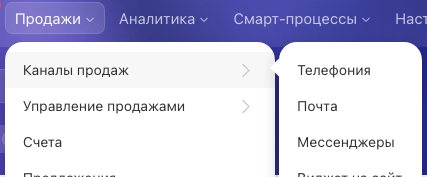
Sign in and open CRM → Sales → Sales channels → Telephony. The screenshot shows the Russian labels: «Продажи», «Каналы продаж», «Телефония». If the section is missing, ask your administrator to check permissions and portal configuration.
03. Arrange your EURASIAN TELECOM connection
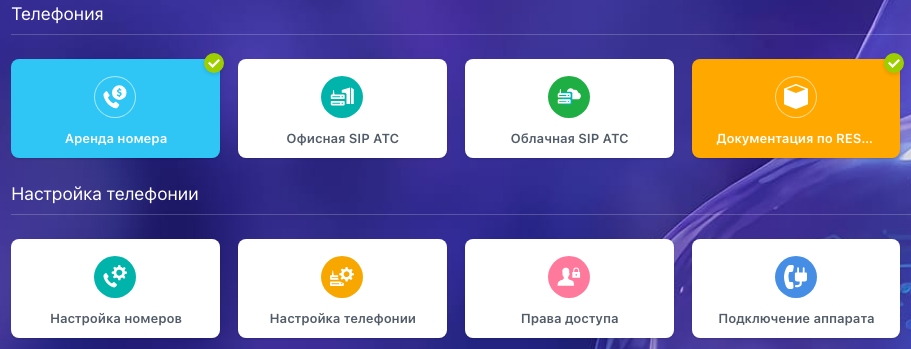
On the Connection page, open «Аренда номера» (Rent a number). For a new connection, select EURASIAN TELECOM in the flow available in your portal and complete the request. If the provider is missing or telephony is already connected, contact us so a specialist can check the existing setup and help arrange the service.
- In a connected portal, this section may show existing numbers and account details instead of an initial form. Those details are excluded from the screenshots.
- Specific number availability, documents, pricing and connection timing are agreed individually. Submitting a request does not automatically activate or reserve a number.
- Do not select Office SIP PBX or Cloud SIP PBX for this connection method; these are different setups.
04. Configure employees and call handling
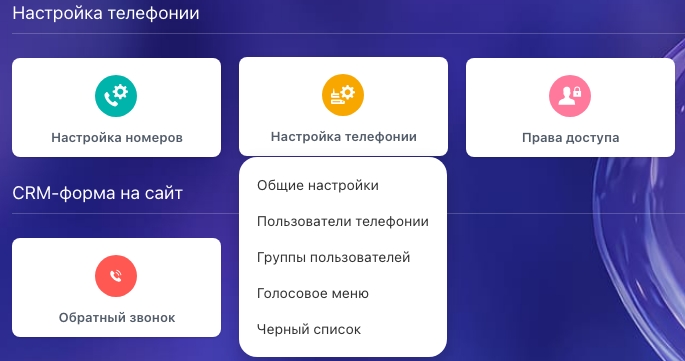
After the number is activated, open Telephony settings. The menu provides general settings, telephony users, user groups and the voice menu. IVR, queues and call distribution are configured within Bitrix24.
- Use Telephony users and User groups to define participants and handling rules; use Number settings for an individual number.
- Agree working and out-of-hours handling, queues, IVR and missed-call rules for your company.
- Our specialists provide paid assistance to your portal administrator with the initial setup. Later changes to Bitrix24 settings are also charged separately.
05. Check CRM integration
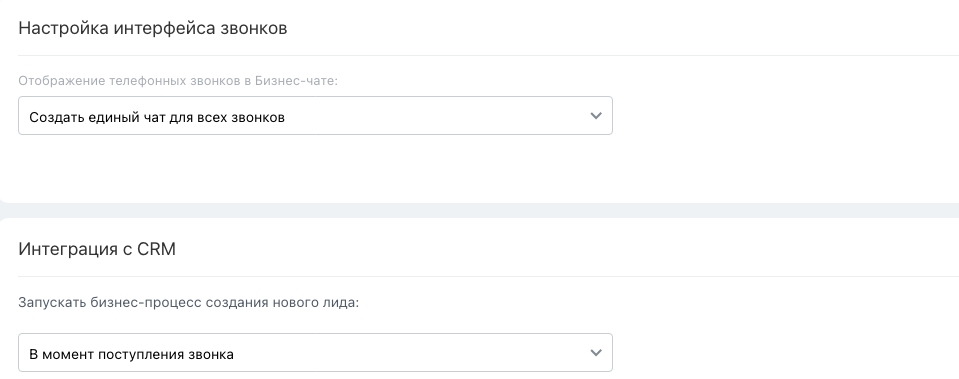
Work with your administrator to define how calls relate to CRM. General settings include CRM integration; also check the individual number under Number settings. The value in the screenshot is an example configuration, not a required choice for every customer.
- For a known caller, check that the customer card opens. For a new caller, configure lead or other CRM item creation according to the CRM mode.
- Check outbound calling from the card, call history, recording access and missed-call handling. Recording retention depends on portal settings and plan.
- Missed-call notifications and tasks can be configured. Support for triggering robots and business processes from call events is checked separately for your portal.
06. Run a joint pre-launch check
Test the agreed scenarios with a EURASIAN TELECOM specialist before launch. Calls can be answered in the Bitrix24 browser interface without a separate IP phone; check microphone permission, audio and employee rights.
- Incoming and outgoing calls, and display of the assigned local number.
- Customer card opening, call history and recording storage, distribution and missed-call handling.
- Telephony technical support is included in the service and works 24/7: WhatsApp +7 707 326 99 90, email cs@etel.kz.
Before you contact us
Checked 0 of 3
Checks stay on this page only and are not saved.